
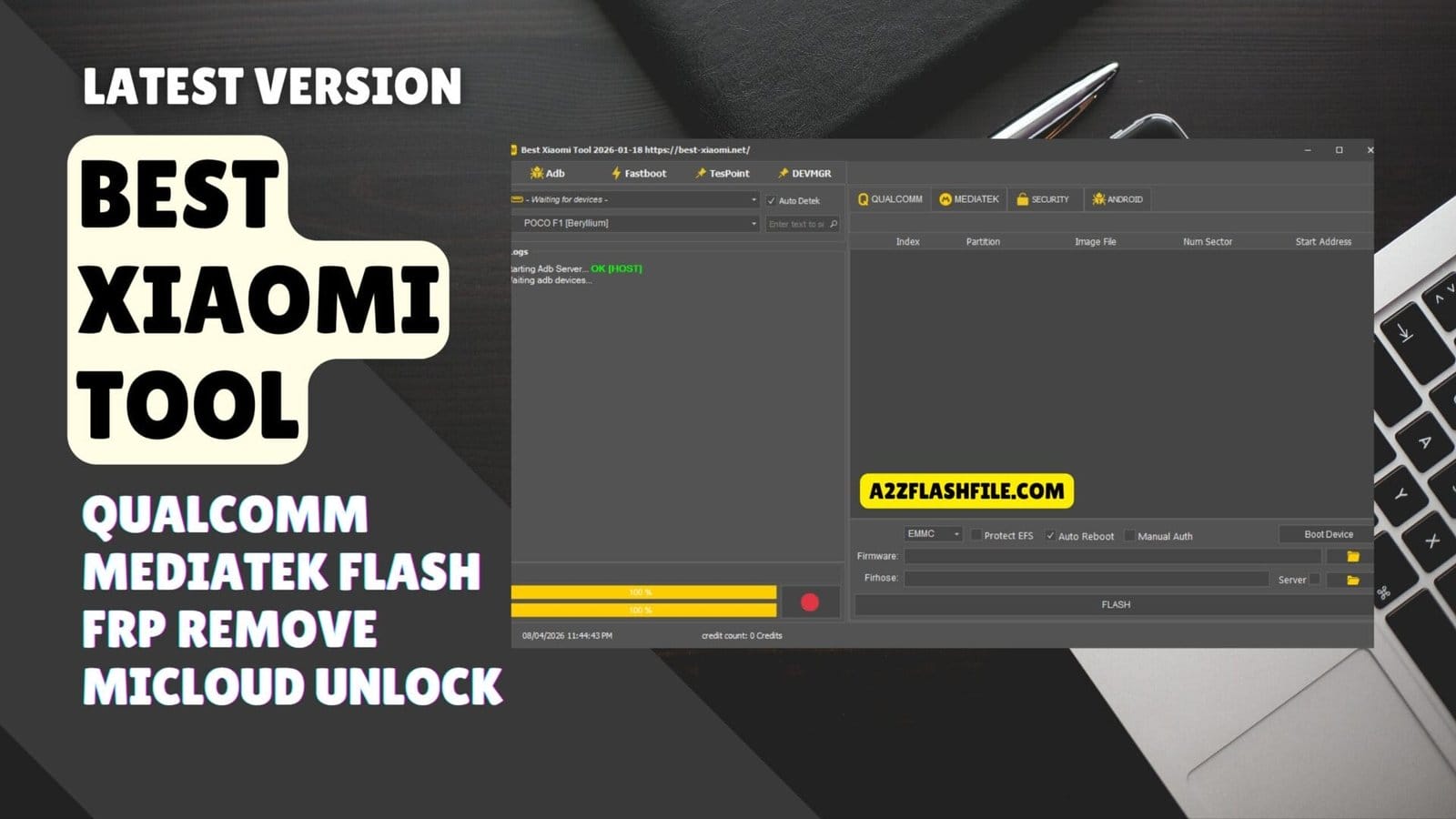
The best xiaomi tool supports qualcomm edl flash mediatek scatter firmware upgrade frp removal micloud++ unlock adb sideload and instant bootloader unlock — all in one powerful interface.
If You’ve Ever Stared At A Bricked Xiaomi Phone A Locked Bootloader Or A Stubborn Frp Screen That Just Won’t Budge — You Know That Sinking Feeling. Most Tools Out There Either Don’t Support Your Device Ask For Sketchy Logins Or Leave You More Confused Than When You Started. Whether You’re Dealing With A Qualcomm Chipset A Mediatek Device Or Trying To Remove Micloud On A Second-hand Phone Finding One Reliable Tool That Actually Works Feels Like Searching For A Needle In A Haystack.
That’s Exactly Why This Post Exists. We’re Breaking Down The Best Xiaomi Tool Available Right Now — One That Covers Everything From Qualcomm Flash And Partition Management To Mediatek Firmware Upgrades Frp Removal Adb Sideload And Even Instant Bootloader Unlock. By The End Of This Guide You’ll Know Exactly Which Tool To Use How Its Features Work And How To Get Your Xiaomi Device Back Under Your Full Control — No Guesswork No Wasted Hours.
What Is The Best Xiaomi Tool
So What Exactly Makes A Xiaomi Tool Worth Your Time? It’s Not Just About Flashing Firmware. The Best Xiaomi Tool Handles Multiple Chipsets Covers Both Software And Security Operations And Doesn’t Require A Computer Science Degree To Run. This Tool Does All Of That. It’s An All-in-one Solution Built Specifically For Xiaomi And Redmi Devices — Supporting Both Qualcomm And Mediatek Platforms Under One Clean Interface. Whether You’re A Professional Technician Or Fixing Your Own Phone It Gives You Real Power.
What’s Inside Matters Too. On The Qualcomm Side You Get A Partition Table With Index Image File Sector Count And Start Address All Visible At Once. The Mediatek Side Works With Scatter Files Preloader Paths Firmware Upgrades And Bypassauth Options. The Security Module Handles Frp Removal Micloud Unlock And Userdata Wipes. Adb And Fastboot Round It All Out. It’s Not Just A Flash Tool — It’s A Complete Device Rescue And Management System Built For Serious Work.
Qualcomm Module Full Feature Breakdown
The Qualcomm Module Is One Of The Strongest Parts Of This Tool. When You Open It You’ll See A Clean Partition Table Showing The Index Partition Name Image File Path Number Of Sectors And Start Address All Organized In One View. This Makes It Easy To Target Specific Partitions Without Guessing. Whether You’re Flashing A Single Partition Or The Full Firmware You Stay In Full Control At Every Step Without Any Confusion Or Blind Operations Getting In The Way.
Beyond Basic Flashing The Tool Gives You Advanced Options That Genuinely Set It Apart. Protect Efs Keeps Your Imei And Network Data Safe During The Flash. Auto Reboot Restarts The Device Automatically Once Flashing Finishes. Manual Auth Lets You Handle Authentication Yourself When Needed. Boot Device Detects Your Connected Phone And The Server Field Manages Online Authentication For Supported Operations. Load Your Firmware And Firehose Paths Press Flash And The Job Is Done Cleanly And Quickly Every Time.
Qualcomm Partition And Index Management
Understanding The Partition Table Is Key To Using This Module Correctly. Each Row Shows The Partition Index Its Name Like Boot Recovery Or System The Image File Being Written The Sector Count And The Start Address On The Emmc Storage. This Level Of Detail Gives Technicians Full Visibility Into Every Flash Operation. Nothing Happens Blindly. You See Exactly What’s Being Written Where It’s Going And How Much Space It Occupies Before You Ever Press Flash.
Emmc Support And Protect Efs
The Emmc Is Your Phone’s Internal Storage Chip And Flashing It Incorrectly Can Wipe Critical Baseband Data Permanently. Protect Efs Keeps The Efs Partition Which Stores Your Imei And Modem Calibration Data Completely Untouched During Any Flash Operation. If You’ve Ever Seen A Phone Lose All Network Signal After A Bad Flash That’s Exactly The Disaster This Feature Prevents. It’s A Small Toggle That Makes A Massive Difference Especially When Working On Devices Where The Imei Absolutely Cannot Be Lost.
Manual Auth And Auto Reboot Options
These Two Options Give You Real Flexibility Depending On Your Workflow. Auto Reboot Is Great For Batch Work The Device Reboots On Its Own Right After Flashing Completes Saving You Time Across Multiple Jobs. Manual Auth Is Useful When You Need To Manage The Authentication Step Yourself Especially On Newer Xiaomi Devices That Require A Server Handshake Before Flashing Is Allowed. Together They Make The Qualcomm Module Adaptable To Almost Any Real-world Scenario You’ll Face In Daily Repair Work.
Key Features of Umt Qcfire Tool
Qualcomm
- Index | Partition | Image File | Num Sector | Start Address
- Emmc
- Protect Efs
- Auto Reboot
- Manual Auth
- Boot Device
- Firmware:
- Firhose:
- Server
- Flash
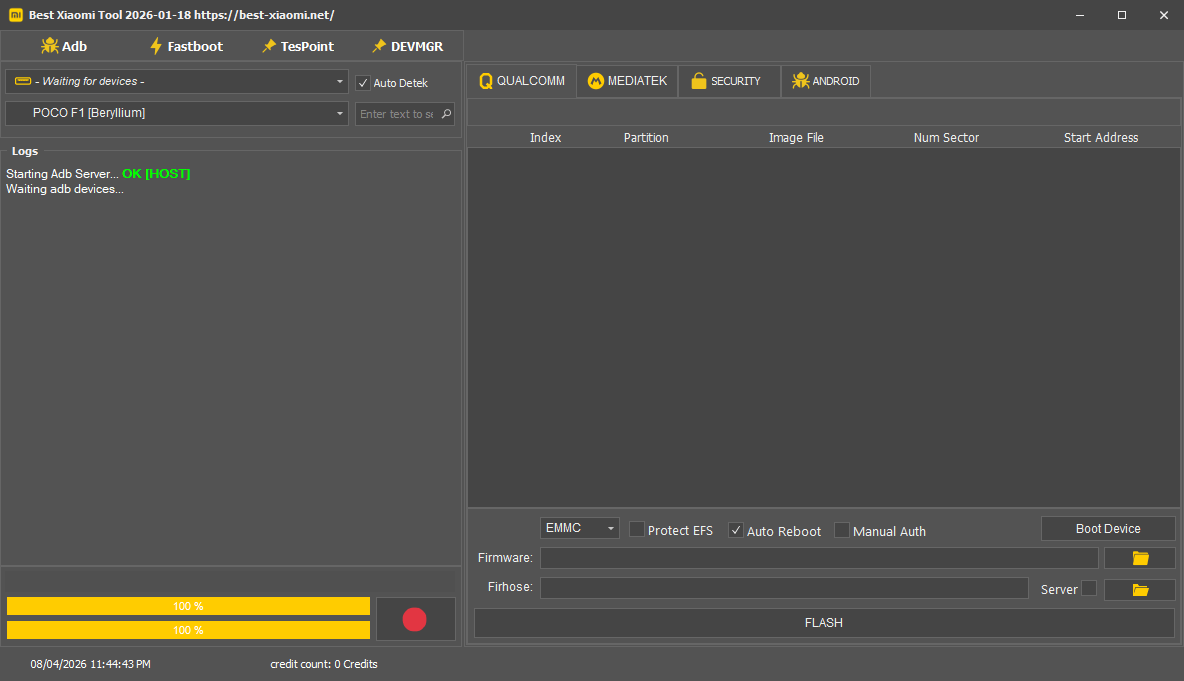
Best xiaomi tool 2026 running on windows — qualcomm tab active with poco f1 beryllium detected showing partition index table emmc mode auto reboot enabled firmware and firhose file paths and the flash button ready to execute.
Mediatek
- Index | Partition | Image File | Num Sector | Start Address
- Firmware Upgrade
- Bypassauth
- Auto Reboot
- Old Auth Setting
- Boot Device
- Download:
- Server
- Scatter:
- Preloader:
- Server
- Flash
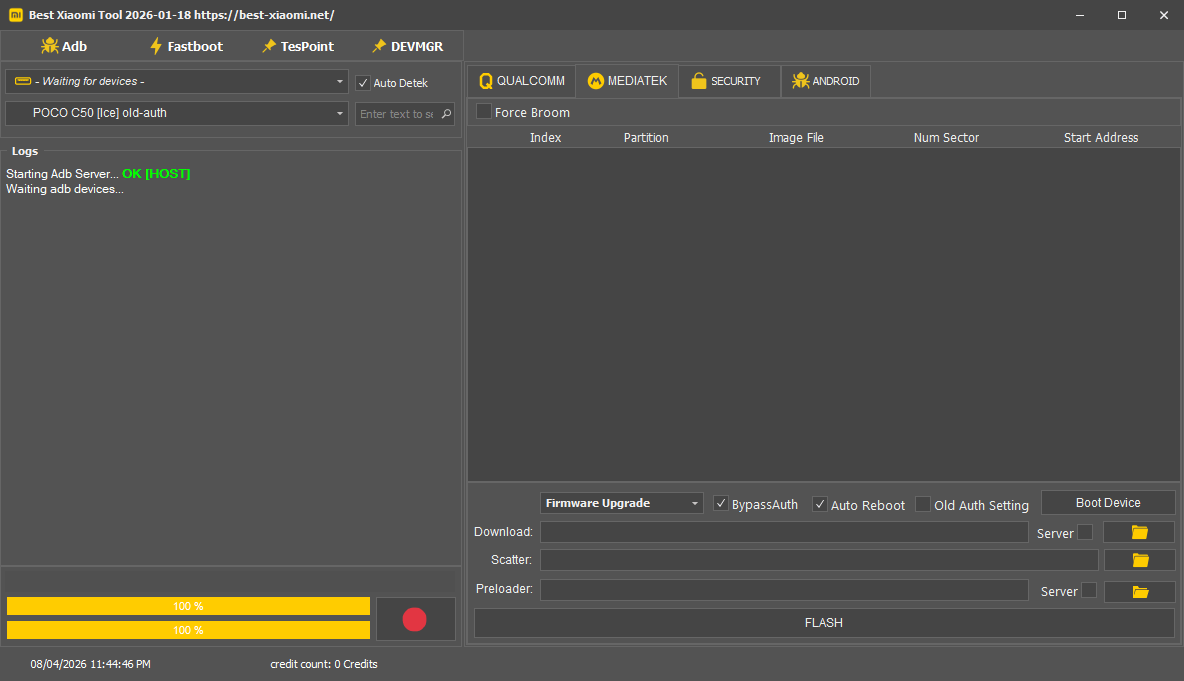
Best xiaomi tool 2026 on the mediatek tab — poco c50 ice old-auth device loaded firmware upgrade mode selected bypassauth and auto reboot enabled with download scatter and preloader file paths ready for flash execution.
Security
Mediatek
- Remove Frp
- Erase Frp, Userdata
- Remove Micloud++
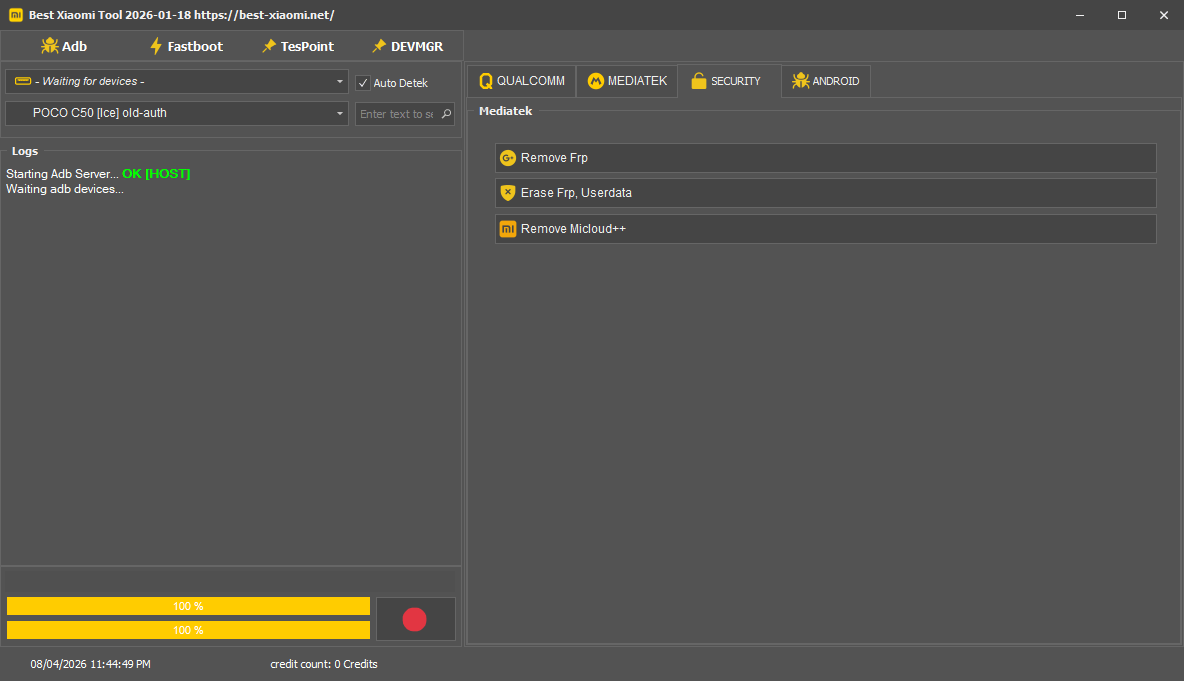
Best xiaomi tool 2026 security tab open on mediatek module — three one-click options visible including remove frp erase frp plus userdata and remove micloud++ for supported xiaomi and redmi devices like the poco c50 ice.
Android
Adb
- Remove Frp (Sideload)
Fastboot
- Reboot Edl (auth)
- Instan Unlock Bootloader(Auth)
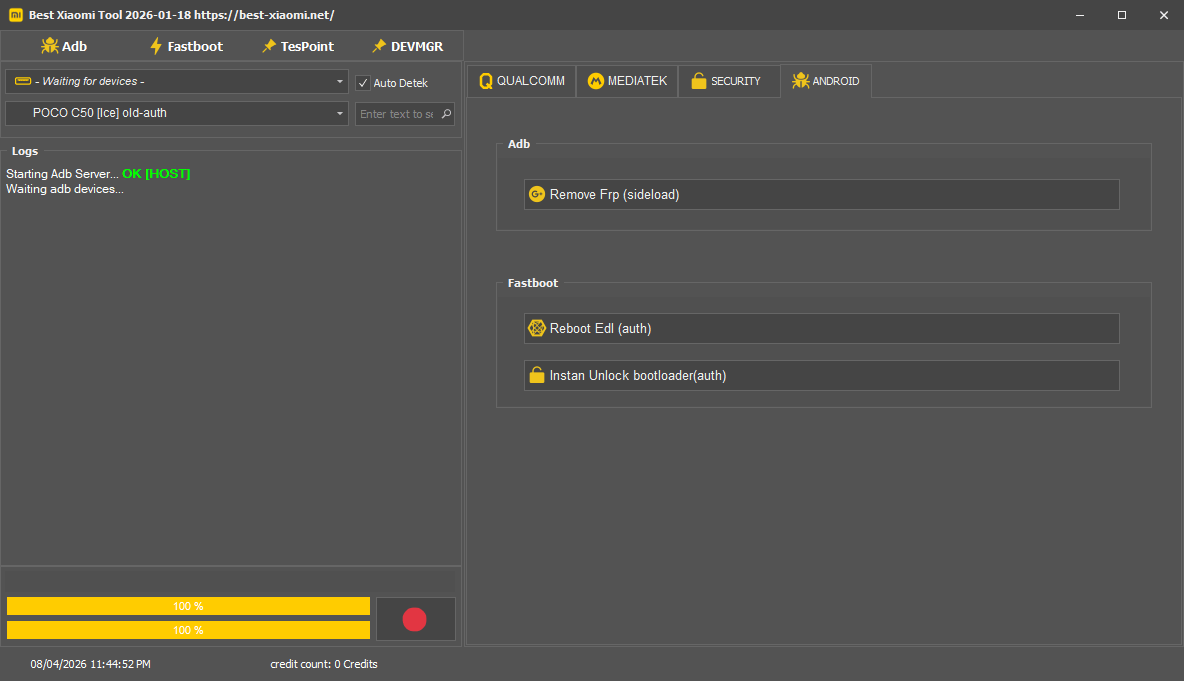
Best xiaomi tool 2026 android tab active — adb section shows remove frp via sideload and fastboot section offers reboot edl with auth and instant unlock bootloader with auth all in one clean interface for poco c50 ice.
Why This Tool Stands Out From The Rest
There Are Dozens Of Xiaomi Tools Floating Around Online — Some Free Some Paid Some Barely Functional After The First Use. What Makes This One Different Is The Sheer Breadth Of What It Covers Without Making You Switch Between Multiple Apps. Qualcomm And Mediatek Support In One Place Security And Android Operations Side By Side And A Clean Interface That Doesn’t Hide Important Settings Behind Confusing Menus.
It Respects Your Time Your Workflow And Your Need To Get Jobs Done Quickly Without Second-guessing The Tool You’re Using. On Top Of That It Stays Updated — And That Matters More Than Most People Realize. Xiaomi Regularly Pushes New Firmware Builds And Authentication Changes That Can Render Outdated Tools Completely Useless Overnight.
This One Keeps Pace With Those Changes Adding Support For New Devices Updated Auth Protocols And Fresh Security Bypass Methods As They Become Necessary. For Anyone Doing Xiaomi Repair Work Regularly That Kind Of Ongoing Reliability Isn’t Just A Nice Bonus — It’s An Absolute Necessity For Keeping Your Business Running Smoothly Day After Day.
Android Module — Adb And Fastboot Operations
Beyond Flashing And Security This Tool Also Covers Android-level Operations Through Adb And Fastboot. These Two Interfaces Give You Direct Access To The Android System And Bootloader Respectively And When Used Correctly They’re Incredibly Powerful. The Tool Wraps Both Into A Simple Interface So You Don’t Need To Deal With Command-line Terminals Or Memorize Long Strings Of Commands.
Everything Is A Button Click Away. It’s The Kind Of Convenience That Makes A Real Difference When You’re Moving Through Multiple Repair Jobs In A Single Day. Adb Mode Handles Operations While The Phone Is Running Or In Recovery And Fastboot Mode Works When The Phone Is In Its Bootloader State.
Together They Cover A Wide Range Of Tasks From Sideloading Packages To Rebooting Into Special Modes And Unlocking The Bootloader With Authentication. It’s A Solid Addition To An Already Feature-packed Toolkit And It Rounds Out The Tool’s Coverage From Top To Bottom. You Rarely Need To Reach For Another App Once This One Is Set Up And Ready On Your Workstation.
Remove Frp Via Adb Sideload
Adb Sideload Pushes A Package Directly Into Android Recovery Without Needing Usb Debugging To Be Pre-enabled On The Device. This Tool Uses That Method To Remove Frp On Devices Where Other Approaches Fail Completely. It’s Particularly Useful On Phones Stuck On The Frp Screen That Can Still Access Recovery Mode Through A Key Combination. Load The Package Through The Tool Hit Sideload And The Frp Lock Clears Without Any Complicated Manual Steps.
It’s Clean Reliable And Works On A Solid Range Of Supported Xiaomi Models. The Fastboot Section Includes Two Powerful Options That Save Serious Time. Reboot To Edl Forces The Device Into Emergency Download Mode Directly From Fastboot — Incredibly Useful When You Need Edl Access But Can’t Trigger It Through Hardware Key Combinations.
Instant Unlock Bootloader Handles The Bootloader Unlock Process With Authentication Making It Faster And Cleaner Than Going Through Xiaomi’s Official Unlock Tool. Both Options Work On Supported Devices And Cut Down The Time Spent On What Would Otherwise Be Lengthy Multi-step Manual Processes In A Busy Repair Environment.
Download The Best Xiaomi Tool Latest Versoin
Getting Started Is Straightforward. The Latest Version Of This Tool Is Available Through Official Or Trusted Mirror Links Shared By The Developer. Always Grab The Newest Release — Older Versions May Not Support The Latest Xiaomi Firmware Or Current Authentication Protocols. The Download Comes As A Compressed Archive With The Executable And Required Drivers Included.
Install The Drivers First And Always Launch The Tool As Administrator For The Best Performance And To Avoid Permission Errors That Block Key Features Like Edl Detection And Adb Communication On Your Windows Pc. Once You’ve Set It Up Everything Inside The Interface Is Neatly Organized And Easy To Navigate. The Qualcomm And Mediatek Tabs Are Clearly Separated So There’s No Risk Of Mixing Things Up Mid-job.
The Security Section Sits On Its Own Covering Frp Removal Micloud Unlock And Bootloader Operations All In One Spot. If You’ve Been Jumping Between Three Or Four Different Tools Just To Handle One Phone This Ends That Headache For Good. Set It Up Once Learn The Layout And You’ll Have The Best Xiaomi Tool Ready For Nearly Any Repair Task.
System Requirements And Installation Tips
Before Installing Make Sure Your Pc Meets The Basics — Windows 7 Or Later With Windows 10 Or 11 Recommended At Least 4gb Of Ram And A Working Usb 2.0 Or 3.0 Port. You’ll Also Need The Correct Qualcomm Or Mediatek Usb Drivers Installed Depending On Which Chipset You’re Servicing. Always Run The Tool As Administrator Every Single Time. Without Admin Rights Features Like Edl Detection Adb Commands And Server Authentication May Fail Silently Leaving You Confused About Why The Tool Isn’t Responding The Way It Should During An Operation.
How To Use The Tool For The First Time
If This Is Your First Time Don’t Let The Feature List Overwhelm You It’s Simpler Than It Looks. Start By Identifying Your Device’s Chipset Qualcomm Or Mediatek Then Open The Matching Tab. Load Your Firmware Files — Firehose For Qualcomm Scatter For Mediatek Connect Your Device In The Correct Mode And Press Flash. For Security Operations Head To The Security Tab Pick Your Operation Connect The Device And Run It. Most Operations Complete Within A Few Minutes And The Tool Walks You Through The Process Clearly Without Leaving You Guessing At Any Step.
Final Thoughts
Xiaomi Devices Are Powerful But They Can Be Tricky To Manage When Things Go Wrong. Having The Right Tool Makes All The Difference — And This One Genuinely Delivers. From Qualcomm Edl Flashing And Mediatek Scatter-based Firmware Upgrades To Micloud Removal And Instant Bootloader Unlock It Covers The Full Spectrum Of What Technicians And Advanced Users Need. Don’t Waste Time On Half-baked Tools That Leave You Stuck. Download The Latest Version Follow The Steps And Take Full Control Of Your Device Today.
Best Xiaomi Tool
Download Link:: Usersdrive – Mediafire – 4shared – My.pcloud – Mega – Vexfile – Google Drive